CONTENTS
Delegate Permissions for 3E APIs
When an external application connects to 3E on behalf of a user, delegated permissions should be used instead of a machine-to-machine (client credentials) setup.
If 3E Data Level Security (Walls) is configured, API responses will respect these restrictions—returning only data that the delegated user is authorized to view.
The following information provides step-by-step instructions for setting up delegated permissions in Azure.
Setting Up Delegated Permissions for 3E APIs
API access is managed via the customer’s Entra ID. You must log into the Azure portal using an account within your domain that has Entra ID administrator privileges to set up delegated permissions.
STEP I: Access APP Registration
Do the following:
Log into Azure portal.
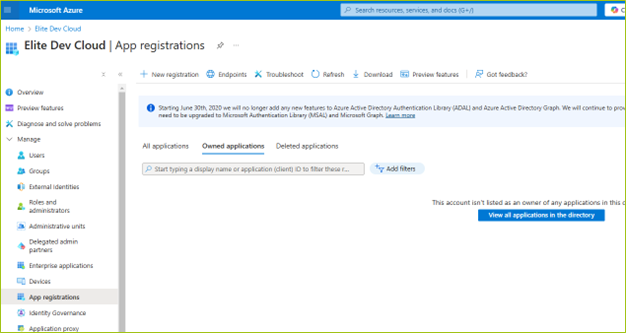
Navigate or search for Microsoft Entra ID.
Under Manage, select App registrations.
STEP II: Register a New Application
Do the following to register a new app:
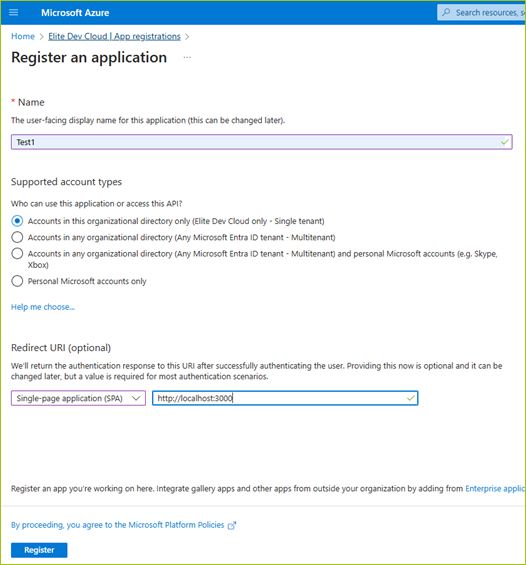
Click + New registration toward the top.
Enter a meaningful name for the application in the Name field.
Choose Accounts in this organizational directory only, in the Supported account types section
Enter the URI used by your client application in the Redirect URI section.
Click Register to create the application.
STEP III: Configure API Permissions
Do the following to configure API permissions:
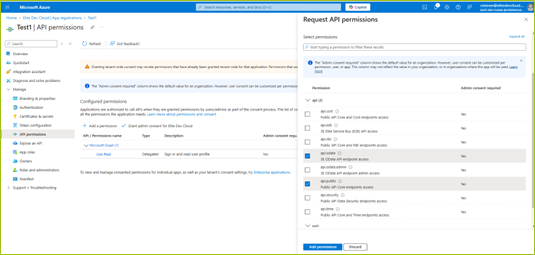
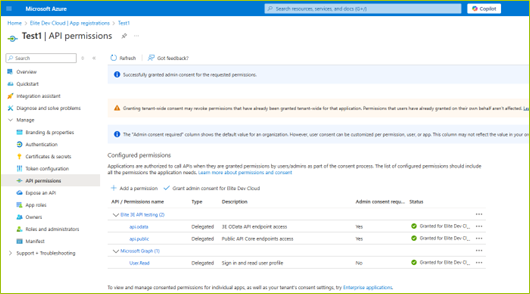
Under Manage, select API permissions.
Click + Add a permission.
In the Request API permissions panel. go to the APIs my organization uses tab and search for and select the desired API (e.g., Elite 3E API testing).
Choose Delegated permissions instead of Application permission.
Select the required APIs for your application.
Click Add permissions to add the APIs under delegated permissions to your application.
STEP IV: Grant Admin Consent
After adding the permissions, you’ll see a prompt indicating that admin consent is required.
Do the following to grant Admin consent:
Click Grant admin consent for [Tenant Name].
Confirm the action.
Verify the status of each permission now reads Granted for [Tenant Name]
How Delegated Permissions Work in Practice
Once delegated permissions are set up:
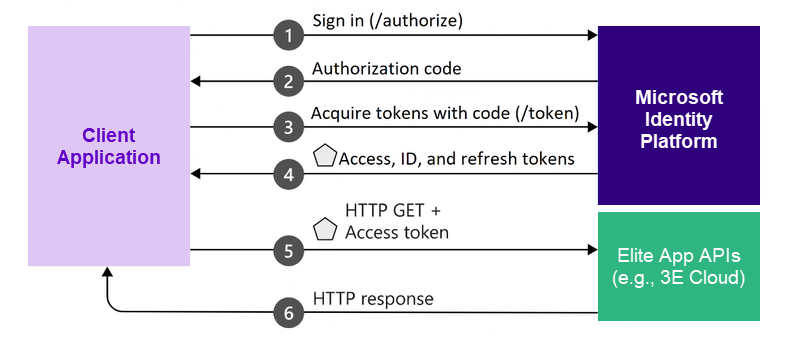
The external application must authenticate users via its own user interface using the Authorization Code Flow with Microsoft Entra ID.
Users sign in using their Entra ID credentials.
Upon successful authentication, the app exchanges the authorization code for an access token.
This token includes the user’s identity and delegated permissions.
The access token is passed to the 3E APIs, allowing the application to make requests on behalf of the authenticated user, subject to their access rights and data-level security.